
How to Check if Email Forwarding Is Enabled in Google Workspace (Without GAM)
This came up during a routine check where we needed to confirm whether any users had email forwarding enabled in a Google Workspace environment.
Surprisingly, there isn’t a very clear or straightforward answer online unless you’re using GAM (Google Apps Manager) via command line.
If you’re looking for a quick way to check this directly in the admin portal, here’s a simple method using built-in tools.
The Quick Way to Check Forwarding Activity
Instead of digging through individual user mailboxes or running scripts, you can use the Audit and Investigation tool in the Google Admin Console.
Here’s how:
- Go to Google Admin Console
- Navigate to:
Reporting → Audit and Investigation → Gmail log events - At the top of the query builder, replace AND with OR
- Remove the default date range (so you’re not limiting results)
- Add a filter:
Event → Is → Autoforward - Add another filter:
Event → Is → Receive - Search
This will return results showing both Receive and Autoforward email activity. Look in the Event column for Autoforward events. The Receive event directly above the Autoforward event is where the forward rule is sending the message.
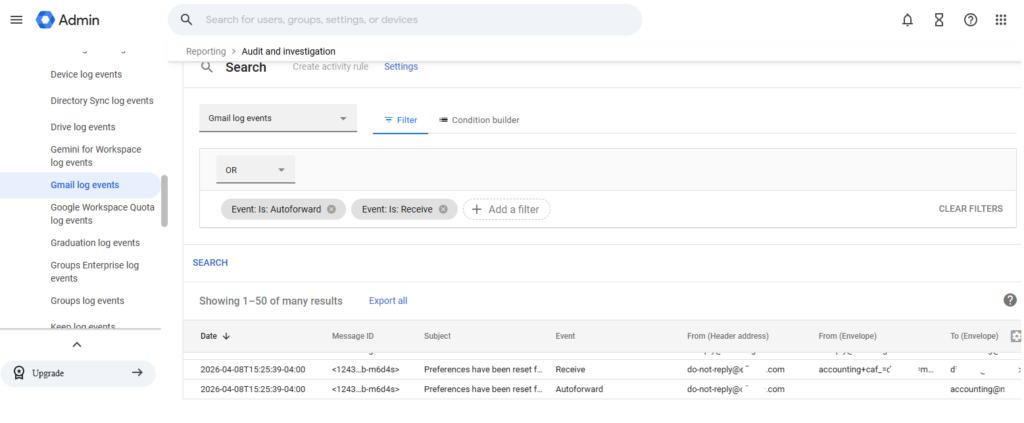
If you don’t see any events that show Autoforward, you may want to remove the “Event: Is: Receive” filter, to verify the date of the last Autoforward activity first, if there is any. If you do see an Autoforward event, note the date and time, and then add the “Event: Is: Receive” filter back in, and browse through the list of events to find that particular date and time.
Why This Works
The Gmail log events tool captures message activity, including forwarding events. By switching from AND to OR, you allow both event types to surface in the results instead of filtering them out.
Removing the date restriction helps ensure you’re not missing older forwarding configurations that may still be active.
When This Is Useful
This approach is especially helpful when:
- You want a quick check without using GAM
- You’re auditing for potential data leakage
- You suspect unauthorized forwarding rules
- You’re reviewing security posture in a Google Workspace tenant
A Quick Note
This method gives you visibility into forwarding-related activity enabled at the user level, but it’s not a direct “on/off” list of all forwarding rules. If you need deeper control or automation, tools like GAM or third-party management solutions may still be worth using.
Hopefully this saves you some time digging.
Managing Forwarding Configured In The Admin Dashboard
If you would like to check for or enable forwarding at the Admin level, here’s how:
- Go to Google Admin Console
- Navigate to:
Apps → Google Workspace → Gmail → Routing (Not Default Routing) - Scroll down to “Email forwarding using recipient address map”, and add a rule or view the existing rules
If You Need a Hand
If you’re unsure what you’re seeing or want help reviewing your Google Workspace environment, feel free to reach out.
NEPA Business Technologies works with businesses throughout the surrounding Poconos areas and beyond to manage and secure cloud environments like Google Workspace and Microsoft Office 365.